
Equipment required
To ensure a smooth remote connection, the following equipment is required near the battery.
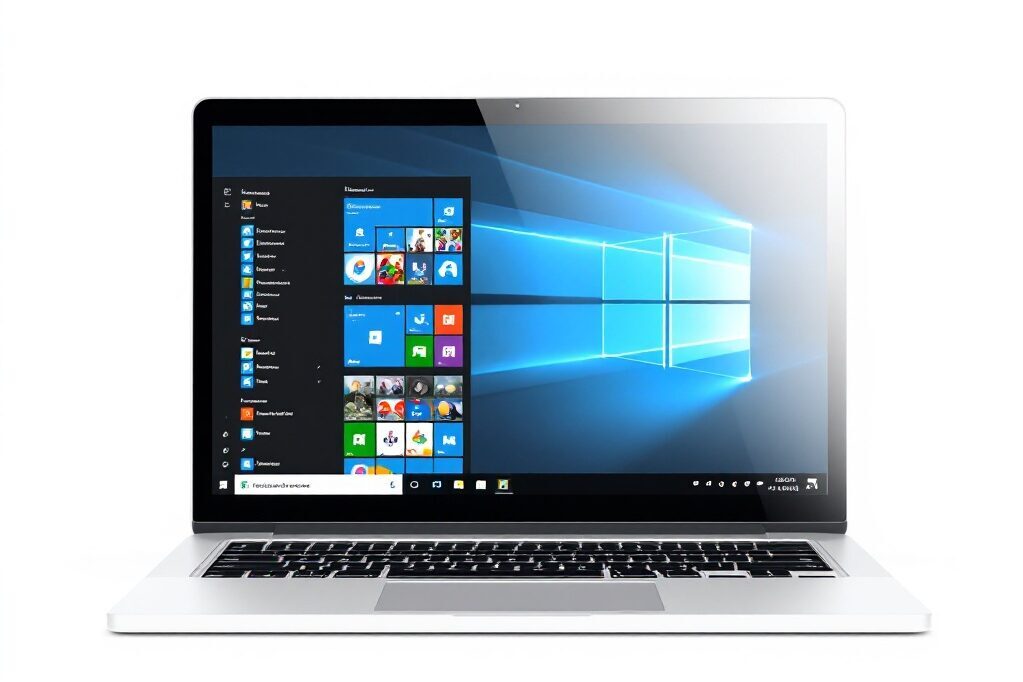
Notebook
– PC with Windows: operating system.
– PC charge status check: communication interruptions could cause irreversible data loss.
– Permissions: to install drivers and software.

TeamViewer
– Install TeamViewer on the PC: to allow remote access to our technicians.
– Authorisations: for remote control of the PC.
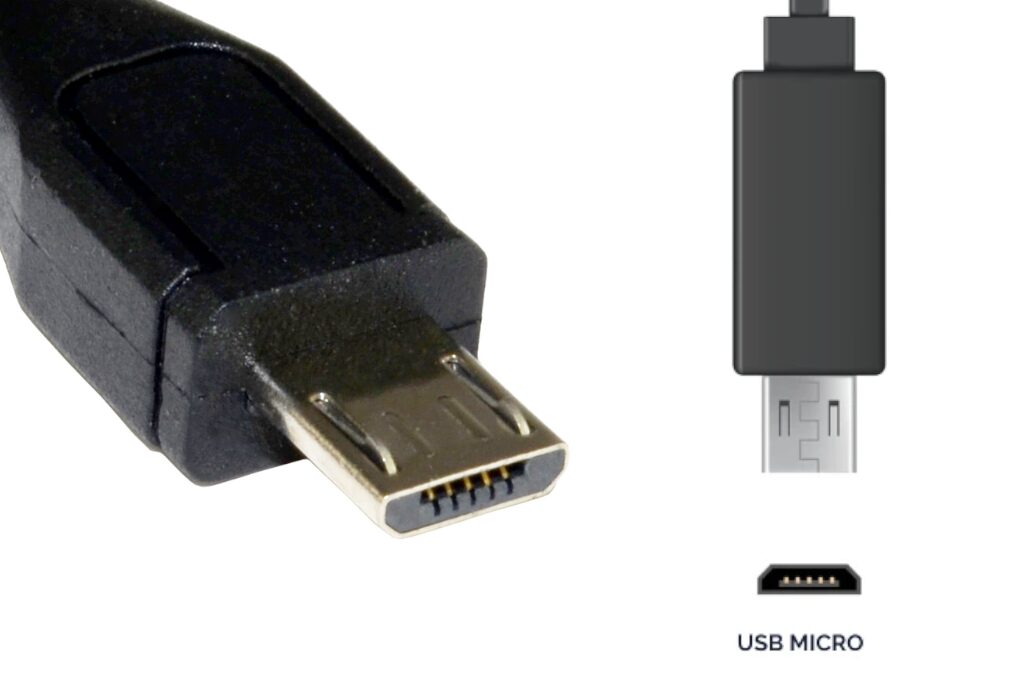
Micro-USB cable
– MicroUSB cable: for PC-Battery connection. Micro-USB port (battery side),
– Enabling data transfer: only use cable for data transfer and not for charging only.
– Sufficient length: of the cable, to work safely on the battery.
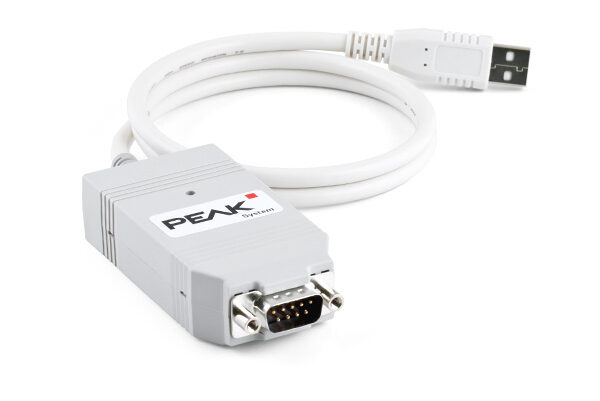
CANBus Analyzer (optional)
– In some cases, a more detailed diagnosis may be necessary; if you have a CANBus analyser (e.g. PCAN), we recommend that you keep it handy.
Procedure
Carefully follow the procedure below. In case of anomaly or doubt, consult our technicians.

BSI Aliant
Open the Aliant BSI diagnostic software corresponding to the battery under test.
If you do not have the software, indicate this to the technician at the time of connection and expect to have enabled the PC for driver and software installation.
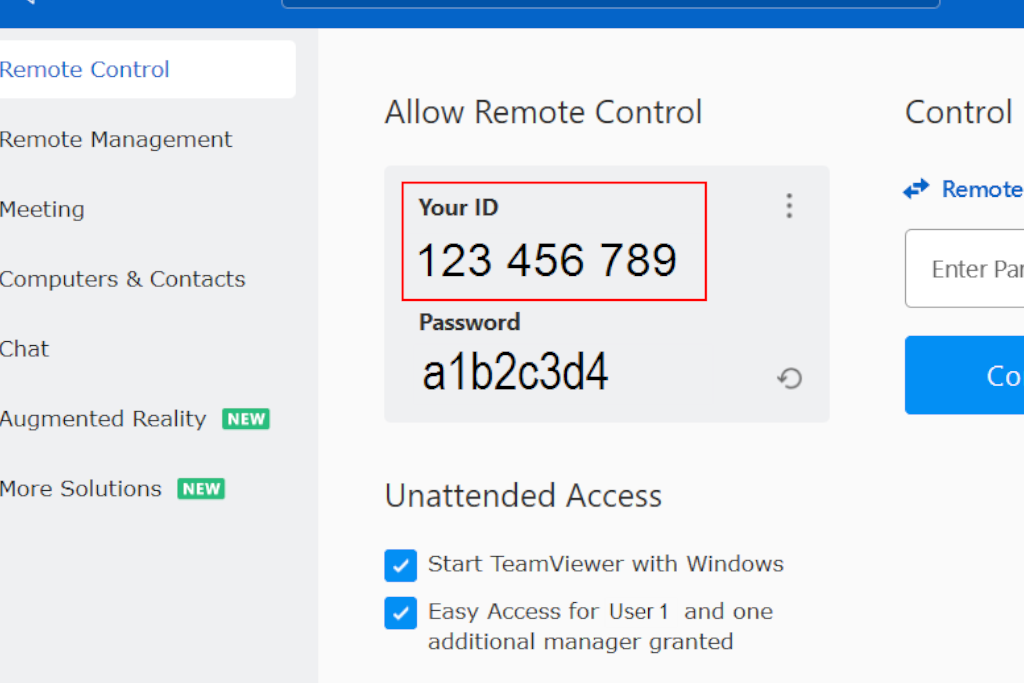
TeamViewer connection
Open TeamViewer and provide ID and Password
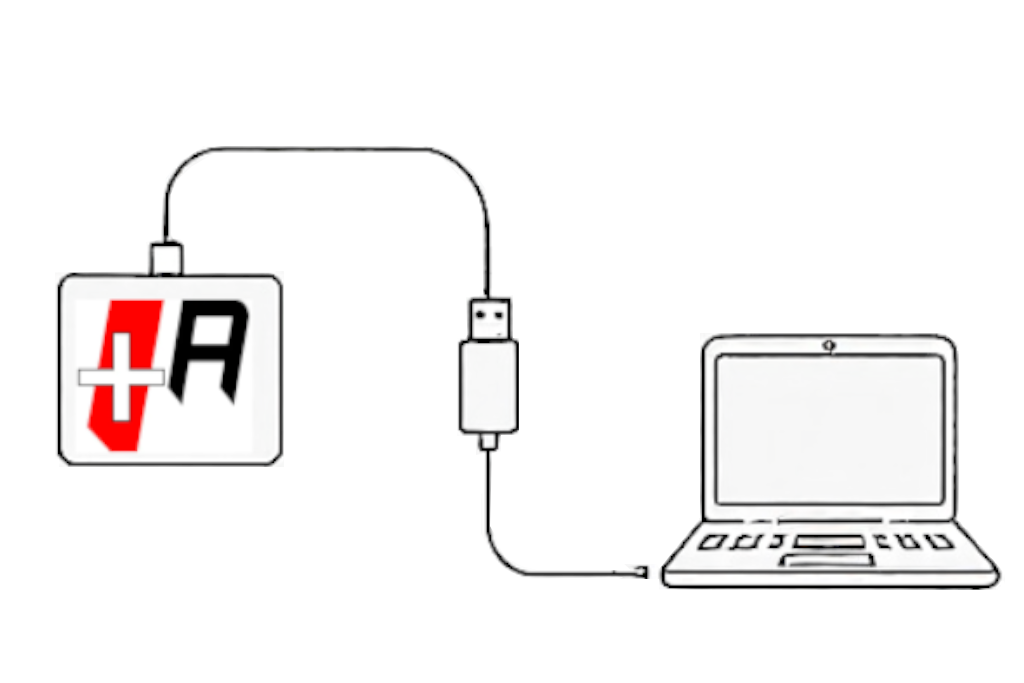
USB link
– Connect USB cable to the PC
– Connect cable to the battery

Battery WAKE UP
Switch on the battery using the button on the battery itself (if planned) or the modes provided by the specific project (e.g. via CANbus).
Cautions
ENVIRONMENT
Ensure that the battery is in a safe position and in an environment where it can be quickly walk away.
PROTECTION
Have the personal protective equipment (PPE) required for the specific intervention to be undertaken.
STAFF
Personnel working on batteries must be able to operate these devices according to the relevant standards and jurisdiction.
MORE INFO
For more detailed information on safety and proper use, please refer to the specific manual of the battery under consideration.


